Getting a new laptop this Black Friday or for the holidays? This new laptop setup checklist covers the first things to do on a new Windows 11 laptop, in the right order, so it stays fast, backed up and easy to recover if something goes wrong later. Most steps take a few minutes, and doing them on day one saves a lot of trouble.
Step 1: Sign In and Finish Setup With the Account You Will Keep
Use a Microsoft account you actually control and will keep, with a password you know and a phone number or recovery email that is current. This matters more than it looks: according to Microsoft, when you set up a device with a Microsoft account, Device Encryption turns on automatically and its recovery key is saved to that account. If someone else sets up the laptop for you with their account, the key may end up in their account instead of yours.
Step 2: Run Windows Update Until Nothing Is Left
A new laptop may have been built months before you open the box, so expect a round of updates right away. Go to Start > Settings > Windows Update and select Check for updates. Download and install everything offered, restart when asked, and check again until it says you're up to date. While you're there, look under Advanced options > Optional updates for driver updates from the laptop maker, and open the manufacturer's own support app if the laptop came with one.
Step 3: Save Your BitLocker Recovery Key
If Windows ever asks for a BitLocker recovery key (for example after a hardware change, a firmware update or a repair), you need a 48-digit number to get back into your files. Microsoft Support says it cannot retrieve or recreate a lost key, and without it you may have to reset the device, which removes your files.
- Check whether encryption is on: Settings > Privacy & security > Device encryption.
- From another device, go to aka.ms/myrecoverykey, sign in with the same Microsoft account, and confirm the new laptop's key is listed.
- Write the key down or print it and keep it with the laptop's paperwork, not inside the laptop.
More detail: save your BitLocker or FileVault recovery key before you need it.
Step 4: Turn On Backup Before You Copy Your Files Over
Search Start for Windows Backup. With a personal Microsoft account, it can sync your Desktop, Documents, Pictures, Videos and Music folders to OneDrive and remember your apps, Wi-Fi networks and settings. Microsoft notes a free account includes 5 GB of OneDrive storage, which fills up quickly with photos, so also keep a second copy of important files on an external drive.
Moving from an old Windows PC? Run Windows Backup on the old PC first. When you set up the new one with the same Microsoft account, Windows offers to restore that backup.
Step 5: Make a Recovery USB Drive
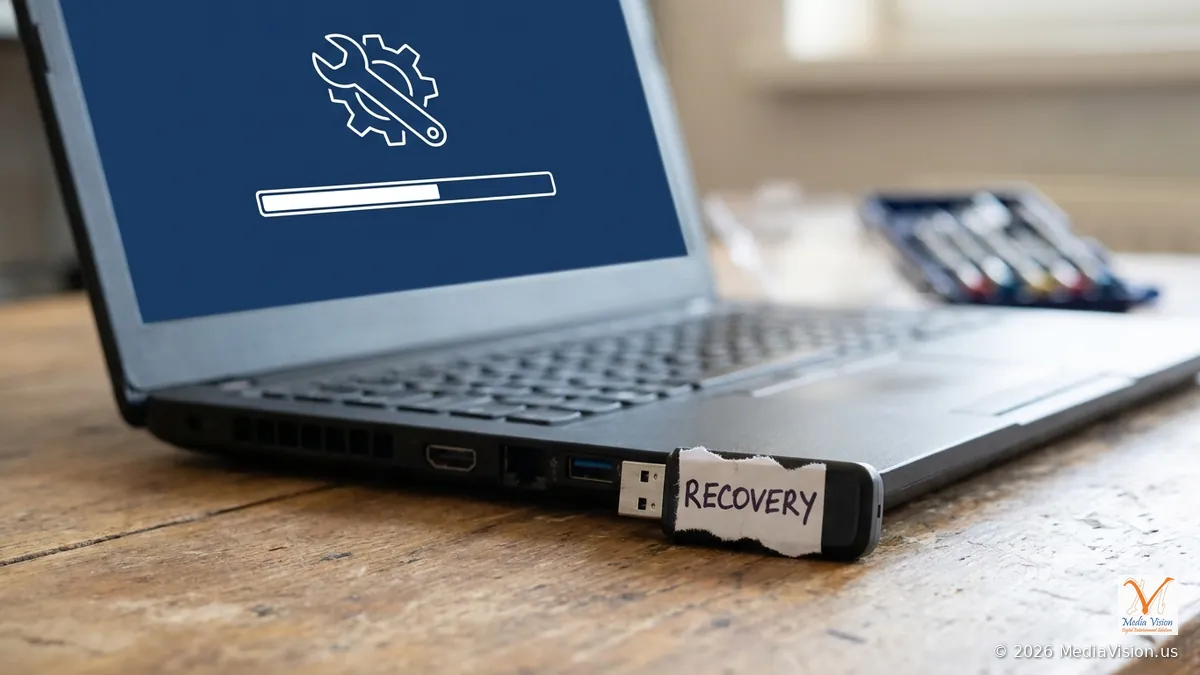
A recovery drive lets you reinstall Windows even if the laptop won't start. Search Start for Recovery Drive, keep Back up system files to the recovery drive checked, and pick an empty USB drive (the process erases it). Microsoft notes the recovery drive does not include your personal files, and recommends making a new one every year. Step-by-step guide: create a Windows recovery USB drive.
Step 6: Remove Trial Apps and Turn Off What You Don't Need at Startup
New laptops often come with trial antivirus, games and extra utilities. Go to Settings > Apps > Installed apps, select the ... next to anything you don't want and choose Uninstall. Don't remove drivers or the manufacturer's support or update tool if you're not sure what they do. Then trim startup programs: disable startup programs in Windows 11.
Keep one antivirus, not two. Windows Security is built in, so if you uninstall a trial antivirus, open Windows Security afterward and confirm Virus & threat protection is on.
Step 7: Check the Battery and Hardware While You Can Still Return It
Use the laptop normally for the first days and watch for dead pixels, keys that don't work, fan noise, Wi-Fi drops or a battery that drains far faster than expected. A quick battery report shows the design capacity and current full charge capacity: check laptop battery health in Windows 11. If something is wrong, contact the store or manufacturer while you're still inside the return window. Return and warranty rules differ, so check your receipt and register the laptop on the manufacturer's site.
Step 8: Create a Restore Point Once Everything Works
When your apps are installed and the laptop runs well, turn on System Protection and create a restore point, so a bad driver or app install later can be undone in minutes: turn on System Restore in Windows 11.
Quick Checklist
- Set up with a Microsoft account you control
- Windows Update until fully up to date, plus optional driver updates
- Confirm your BitLocker recovery key at aka.ms/myrecoverykey
- Turn on Windows Backup and keep a second copy of important files
- Make a recovery USB drive
- Remove trial apps and extra startup programs
- Test battery and hardware before the return window ends
- Create a restore point
How MediaVision Can Help
- Set up new laptops and desktops the right way, with updates, backup and security
- Move files, email and programs from your old computer
- Remove unwanted trial software and speed up startup
- Make a recovery drive and save your recovery keys safely
- Give you a clear, honest quote before any work starts
Diagnostic: $110, discounted to $85, and free with any repair.
MediaVision Computer Repair
800 S Brookhurst St, Suite 1B3, Anaheim, CA 92804
Phone: (714) 888-5959
Book Now
Frequently Asked Questions
What should I do first with a new laptop?
Finish setup with a Microsoft account you control, then run Windows Update until no more updates are offered. After that, confirm your BitLocker recovery key is saved and turn on backup.
Do I need to buy antivirus for a new Windows 11 laptop?
Windows 11 includes Windows Security with Microsoft Defender Antivirus. If you uninstall a trial antivirus, open Windows Security afterward and confirm Virus & threat protection is on. Keep one antivirus program, not two.
Does a recovery drive back up my files?
No. Microsoft says a recovery drive holds the files needed to reinstall Windows, not your personal files. Use Windows Backup, OneDrive or an external drive for your documents and photos.