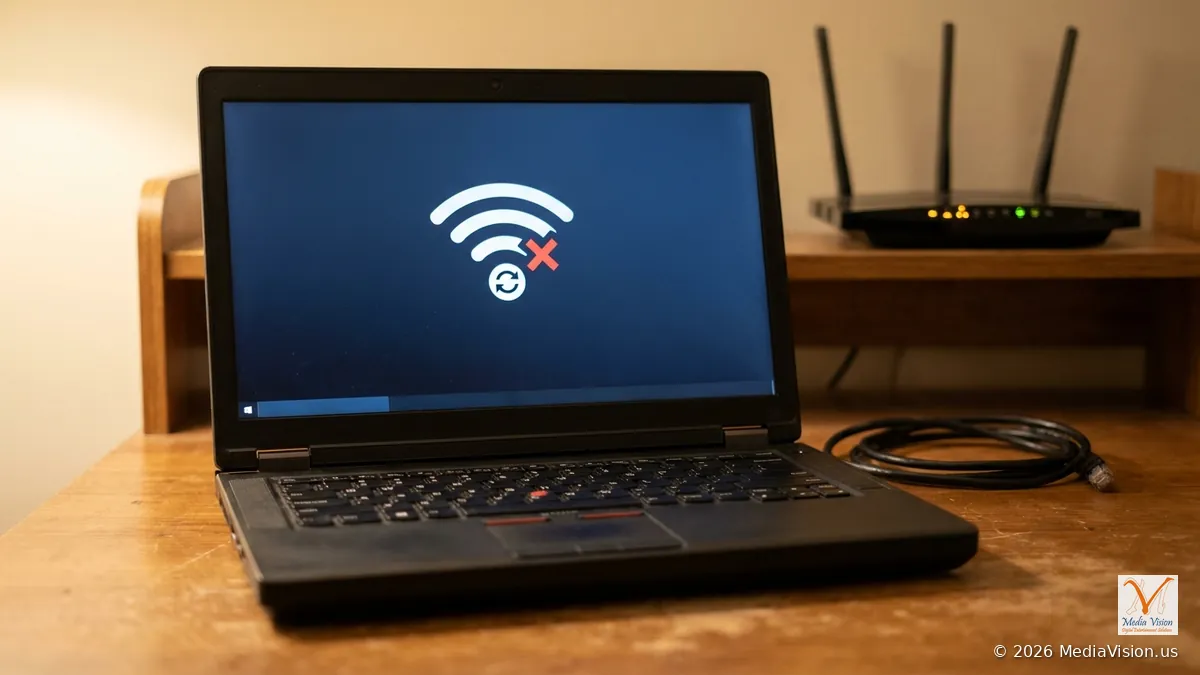
Your phone works on the Wi-Fi, the TV streams fine, but one Windows PC says No Internet or keeps dropping. Before you buy a new router or adapter, work through Windows' own fixes in the right order. Microsoft's support guide lists them from quick and harmless to the last resort, Network reset. Here is that order in plain English.
Step 1: Rule Out the Easy Stuff
- Click the network icon on the taskbar and make sure Wi-Fi is on and Airplane mode is off.
- Try the same Wi-Fi on another phone or laptop. Microsoft notes that if the other device connects, the problem is most likely on your PC, not the router.
- On Windows 11, run the Network and Internet troubleshooter in the Get Help app. Microsoft says it runs diagnostics and "attempt[s] to fix most of the problems" automatically.
Step 2: Forget the Network and Restart the Router
- Go to Settings > Network & internet > Wi-Fi > Manage known networks, select your network, click Forget, then reconnect with the password.
- Unplug the modem and router, wait at least 30 seconds, plug the modem back in, wait for its lights to settle, then plug the router back in. Everyone on the Wi-Fi will be disconnected for a few minutes.
- If your router shows two networks (2.4 GHz and 5 GHz), try the other one.
Step 3: Reset the Network Stack With Five Commands
Click Start, type command prompt, choose Run as administrator, and run these one at a time, in this order (they are the exact commands in Microsoft's guide):
netsh winsock resetnetsh int ip resetipconfig /releaseipconfig /renewipconfig /flushdns
Microsoft explains these reset the TCP/IP stack, release and renew the IP address, and clear the DNS cache. Restart the PC afterward and test again.
Step 4: Is It the PC or the Router? Do a Ping Test
In the same Command Prompt, type ipconfig and find the Default Gateway address (often something like 192.168.1.1). Then type ping followed by that address. If you get replies, your PC is talking to the router and the problem is more likely the modem or your internet provider. If you get no reply, Microsoft suggests connecting the PC directly to your modem with a network cable. If that works, the problem is the Wi-Fi router, so check its firmware and documentation.
Step 5: Last Resort, Use Network Reset
Microsoft says network reset "should be the last step you try." It removes every network adapter and its settings, then reinstalls the adapters with default settings after a restart. It can also help when you can reach the internet but not shared network drives, or after upgrading from Windows 10 to Windows 11.
- Write down your Wi-Fi password first. You will need to reconnect.
- Windows 11: Settings > Network & internet > Advanced network settings > Network reset.
Windows 10: Settings > Network & internet > Status > Network reset. - Select Reset now > Yes, then let the PC restart.
After a network reset, know this:
- VPN apps and Hyper-V virtual switches may need to be reinstalled or set up again.
- Your saved networks may be set to Public. That keeps your PC hidden on the network, which is safer, but if you share printers or folders at home or in the office, switch your trusted network back to Private.
Still Not Working After an Update?
If the connection broke right after a Windows update, Microsoft suggests uninstalling the network adapter in Device Manager (check Attempt to remove the driver for this device) and restarting, so Windows reinstalls it. Download the adapter driver from your PC maker's website first, on another computer if needed, and keep it on a USB drive in case Windows doesn't reinstall it by itself.
Quick Checklist
- Wi-Fi on, Airplane mode off, other devices work?
- Run the Network and Internet troubleshooter
- Forget the network, restart modem and router
netsh winsock reset,netsh int ip reset,ipconfig /release,/renew,/flushdns- Ping the default gateway
- Network reset as the last step, then set your network back to Private if needed
When to Bring It In
If none of this fixes it, or the adapter disappears from Device Manager, the cause may be a failed Wi-Fi card, a loose antenna cable inside a laptop, a driver conflict, security software blocking the connection, or a router that needs firmware or replacement. Those are worth a proper diagnostic.
How MediaVision Can Help
- Diagnose "No Internet" and dropping Wi-Fi on Windows PCs and laptops
- Repair or replace Wi-Fi cards, antennas and network adapters
- Set up routers, office networks, shared printers and folders
- Give you a clear, honest quote before any work starts
MediaVision Computer Repair
800 S Brookhurst St, Suite 1B3, Anaheim, CA 92804
Phone: (714) 888-5959
Book Now
Frequently Asked Questions
Will network reset delete my files?
No. It resets network adapters and network settings only. You will need to reconnect to Wi-Fi and may need to set up VPN software again.
Are the netsh and ipconfig commands safe?
Yes. They are built into Windows and listed in Microsoft's own Wi-Fi troubleshooting guide. Restart the PC after running them.
Only one PC can't get online. Is it my internet provider?
Probably not. If other devices on the same Wi-Fi work, the problem is usually on that PC: settings, the driver or the adapter itself.