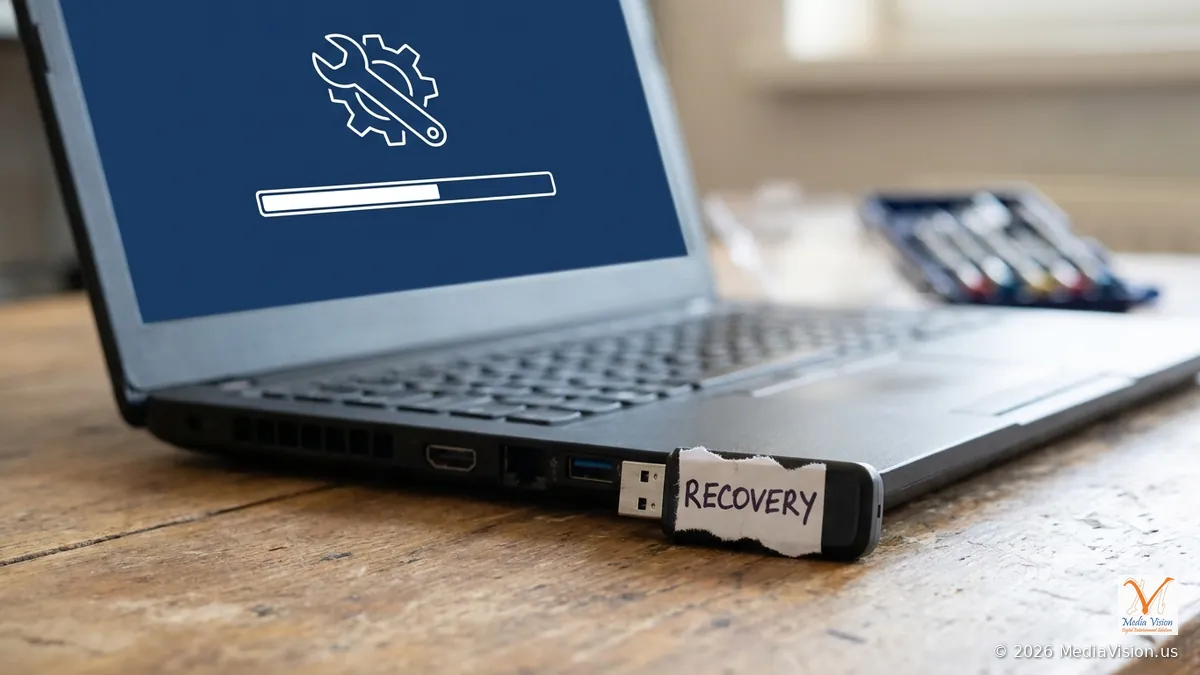
Most people only think about recovery tools when the PC already won't start. By then it's too late to make them on that computer. Windows has a free built-in tool called Recovery Drive that copies what your PC needs to repair itself or reinstall Windows onto a USB flash drive. It takes one empty USB drive and some waiting time, and it can save you a lot of stress later.
What a Recovery Drive Does (and Doesn't Do)
- It can start a PC that won't boot. Starting your computer from the recovery drive takes you straight to the Windows Recovery Environment (Windows RE), where you'll find Startup Repair, System Restore, Uninstall Updates, Command Prompt and Reset this PC (Microsoft).
- It can reinstall Windows. Microsoft says the recovery media includes built-in Windows files, the updates installed when you made it, and any customizations from your PC maker, so it can restore the PC to factory settings even after the drive is replaced or wiped.
- It does NOT back up your files. Microsoft is clear that your personal files are not included. Back them up separately with Windows Backup, File History, OneDrive or an external drive.
- It's made for that PC. Microsoft describes it as recovery media for the device it was created on. Make one for each computer.
Before You Start
- Use an empty USB flash drive. Microsoft warns that the process erases everything already on the drive.
- The tool tells you how much space it needs. In our shop we use a 32 GB or larger drive so there is room to spare.
- Plug the laptop into power. Copying the files can take a while.
How to Make the Recovery Drive (Windows 11 and 10)
- Click Start, type Recovery Drive and open it. You can also press Windows + R and run
recoverydrive.exe. Approve the admin prompt if asked. - Make sure Back up system files to the recovery drive is checked, then select Next.
- Connect your USB drive, select it in the list, then select Next.
- Select Create. Microsoft notes many files need to be copied, so this can take a while. Don't unplug the drive until it says it's ready.
- Label the drive (for example "Recovery - Office Laptop") and store it somewhere safe. Don't reuse it for other files.
Keep It Up to Date
- Microsoft recommends making a new recovery drive once a year so it includes the latest Windows updates.
- Microsoft also notes that recovery drives made on PCs with the April 9, 2024 security update and the Secure Boot revocation policy applied may be affected (KB5025885). If an old recovery drive won't start your PC, make a fresh one on a working PC with current updates.
How to Use It When Windows Won't Start
- Plug in the recovery drive and start the PC from the USB drive. The key for the boot menu is different on each brand (often F12, F11, F9 or Esc), so check your PC maker's manual.
- When Windows RE loads, try the gentle fixes first: Startup Repair, then System Restore or Uninstall Updates if the problem started after an update.
- Only use Recover from a drive as a last resort. Microsoft says it reinstalls Windows and gives you the choice of Just remove my files or Fully clean the drive. Either way, your personal files on that PC are removed.
- If your PC is encrypted with BitLocker, Microsoft says you'll need the BitLocker recovery key for some tools. Find and save it now, while the PC still works.
No recovery drive? Microsoft says you can make Windows installation media with the Media Creation Tool on another working PC, boot from it and choose Repair my PC to reach the same recovery tools.
MediaVision Tips From the Repair Bench
- A recovery drive plus a real backup of your files is the best combination. One fixes Windows, the other protects your photos and documents.
- Write down or save your BitLocker recovery key and your Microsoft account login. These are the two things customers most often can't find when a PC won't start.
- If the PC clicks, beeps or doesn't show anything on screen, the problem may be hardware. Don't keep reinstalling Windows. Have the drive and memory tested first.
- Before choosing "Fully clean the drive", make sure everything you need is backed up. That step can't be undone.
How MediaVision Can Help
If your PC won't start or you want it ready for the worst day, bring it to the MediaVision workshop in Anaheim. We can:
- Create and test a recovery USB drive for each of your computers
- Set up automatic backups of your files
- Find and save your BitLocker recovery key
- Repair PCs that won't boot and recover files from failing drives
- Give you a clear, honest quote before any work starts
Diagnostic: $110, discounted to $85, and free with any repair.
MediaVision Computer Repair
800 S Brookhurst St, Suite 1B3, Anaheim, CA 92804
Phone: (714) 888-5959
Book Now
Frequently Asked Questions
Does a recovery drive back up my photos and documents?
No. Microsoft says the recovery media doesn't include your personal files. Use Windows Backup, File History, OneDrive or an external drive for those.
Can I use my recovery drive on another computer?
It is made for the PC it was created on. Make a separate recovery drive for each computer.
How often should I make a new one?
Microsoft recommends recreating it once a year so it includes the latest updates.
Will using it erase my computer?
Startup Repair, System Restore and Uninstall Updates don't remove your personal files. "Recover from a drive" reinstalls Windows and removes your files, so back up first if you can.