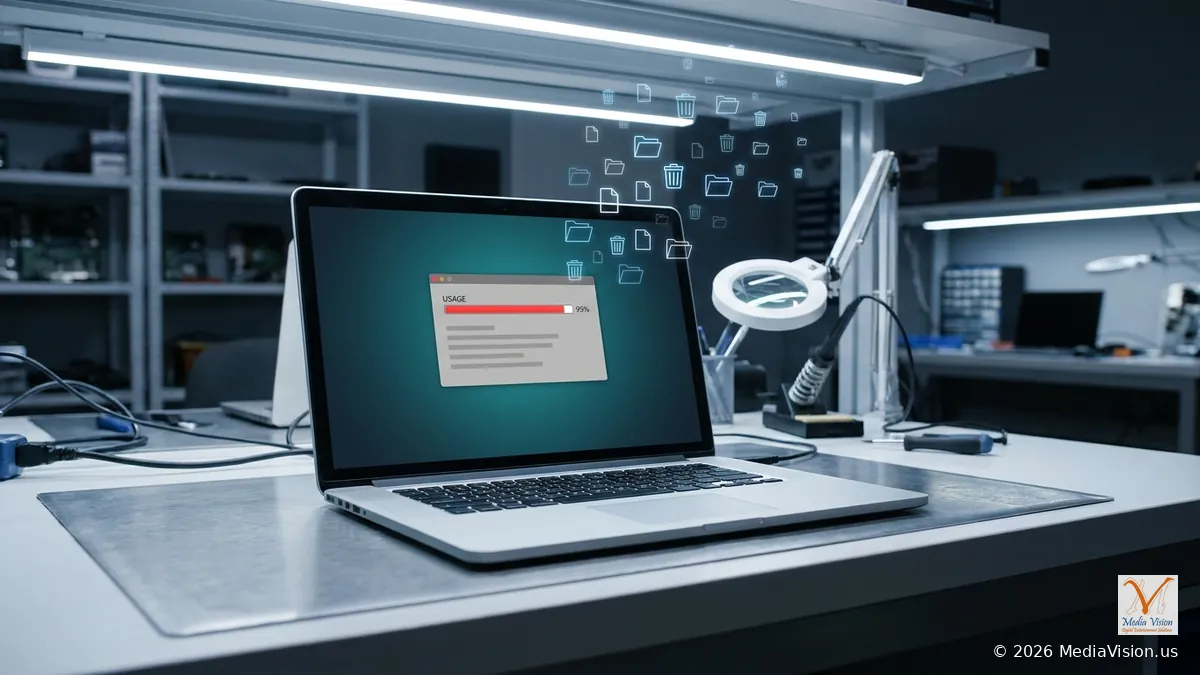
Is your PC warning about low disk space, or is the C: drive bar in File Explorer turning red? A nearly full system drive can make Windows slower and can stop Windows updates from installing (Microsoft). Before you buy a bigger drive, use the free tools already built into Windows: Cleanup recommendations for a one-time cleanup, and Storage Sense to keep the drive from filling up again.
Step 1: See How Much Space Is Left
- Open File Explorer from the taskbar and select This PC on the left.
- Look under Devices and drives. The bar under Local Disk (C:) shows how much free space you have.
- For a breakdown, go to Start > Settings > System > Storage. Microsoft says you are in a low disk state when the capacity bar on this page turns red.
Step 2: Clean Up Safely With Cleanup Recommendations (Windows 11)
- Go to Start > Settings > System > Storage > Cleanup recommendations.
- Review each section: Temporary files, Large or unused files, Files synced to the cloud and Unused apps. Windows shows how much space each item will save.
- Check only the items you are sure you don't need, then select Clean up for that section.
Careful with "Previous Windows installation(s)". If you upgraded Windows in the last 10 days, the old version (the Windows.old folder) may be listed. Deleting it frees space, but Microsoft warns it can't be undone and you won't be able to go back to your previous version of Windows.
On Windows 10, or if you prefer the classic tool, type disk cleanup in the taskbar search, pick the drive, then select Clean up system files to include system files too.
Step 3: Turn On Storage Sense So It Doesn't Fill Up Again
- Go to Start > Settings > System > Storage and set Storage Sense to On.
- Select Storage Sense to choose its settings. Under Run Storage Sense, pick how often it runs.
- Choose how long files can sit in the Recycle Bin before they are deleted.
- The Downloads folder option deletes files you haven't opened for the time you pick. Leave it at Never if you keep important files in Downloads.
Good to know (from Microsoft):
- Storage Sense is off by default, but Windows may turn it on to clean some temporary files when your PC runs low on space, and will notify you.
- With default settings it runs when space is low and cleans temporary files. It doesn't touch your Downloads folder or OneDrive files unless you set it to.
- It works on the system drive (usually C:) only, and only when you are signed in and online.
- If you use OneDrive, Storage Sense can make files you haven't opened in a while online-only. This does not delete them; they download again when you open them (with an internet connection). Files marked Always keep on this device are left alone.
Step 4: Find the Big Files Yourself
- In File Explorer, open Videos, Pictures, Music and Downloads. Microsoft says these folders usually hold the largest files.
- Switch to View > Details, right-click an empty area and choose Sort by > Size to put the biggest files at the top.
- Move photos and videos you want to keep to an external drive, or delete what you don't need, then empty the Recycle Bin to actually get the space back.
- To stop the problem coming back, go to Settings > System > Storage > Advanced storage settings > Where new content is saved and send new files to a second drive if you have one.
Still Low on Space? Other Things to Check
- Space disappears quickly after cleaning: Microsoft says the Temp folder can fill up with Microsoft Store app files. Its fix: run the Windows Store Apps troubleshooter, run
wsreset.exefrom Windows + R, run the Windows Update troubleshooter, then restart. - Malware: run a full scan with Windows Security if the drive is filling up for no clear reason.
- A Windows update needs more room: Windows can use an external drive to help complete a feature update.
MediaVision Tips From the Repair Bench
- Back up before any big cleanup. "Large or unused files" can include things you still want.
- Don't delete random files or folders from C:\Windows or Program Files by hand. Use the built-in tools above.
- Skip "PC cleaner" apps that promise huge speed gains. Windows already has what you need.
- If your laptop has a small drive (128 GB or 256 GB) and fills up again every few weeks, a larger SSD is often the real fix.
How MediaVision Can Help
If your PC keeps running out of space or updates keep failing, bring it to the MediaVision workshop in Anaheim. We can:
- Find what is filling your drive and clean it up safely
- Back up your photos and files before any work
- Upgrade to a larger SSD and move everything over, Windows included
- Fix Windows updates that fail because of low disk space
- Give you a clear, honest quote before any work starts
Diagnostic: $110, discounted to $85, and free with any repair.
MediaVision Computer Repair
800 S Brookhurst St, Suite 1B3, Anaheim, CA 92804
Phone: (714) 888-5959
Book Now
Frequently Asked Questions
Is Storage Sense safe to turn on?
Yes. With default settings it only cleans temporary files and old Recycle Bin items when space is low. It only deletes files from Downloads if you choose a time limit for that folder.
Will Storage Sense delete my OneDrive files?
No. It can make cloud files online-only, which frees space on the PC, but the files stay in OneDrive and download again when you open them.
Can I delete the Windows.old folder?
Yes, through Temporary files or Cleanup recommendations. But once it's gone, you can't roll back to your previous version of Windows.
Why does low disk space matter?
Microsoft says running out of space can slow your PC and make it hard to install Windows updates, which keep your PC secure.