You press the power button, sign in, and then wait. The desktop appears, but the PC stays sluggish for minutes while icons pop up in the corner and the disk light stays busy. One common cause is simple: too many apps set to start automatically every time you sign in. Windows 11 and Windows 10 let you see them, check how much each one slows startup, and turn off the ones you do not need. It only takes a few minutes and costs nothing.
Microsoft says the apps that run automatically when your device boots "can impact both the speed of your startup and the overall performance of your system." Many programs add themselves to startup when you install them: updaters, chat apps, game launchers, cloud sync tools, printer helpers, and trial software that came with the PC.
Option 1: Turn Startup Apps Off in Settings
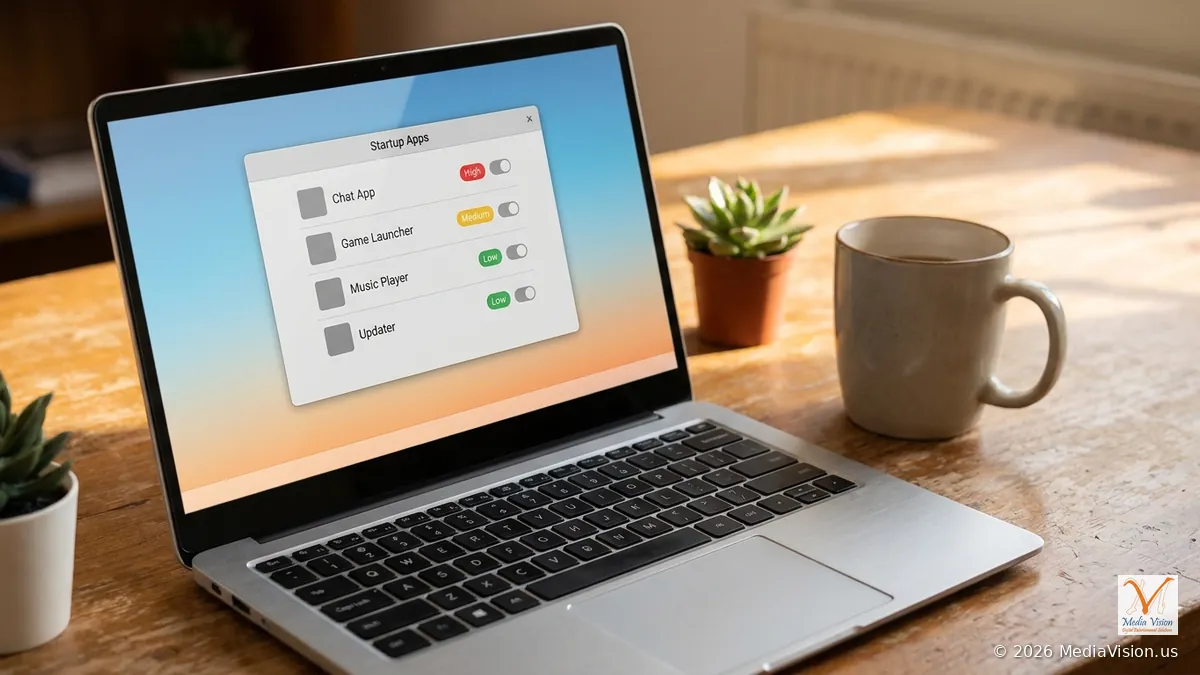
- Select Start > Settings > Apps > Startup.
- Look through the list. Each app has an On/Off toggle.
- Set the toggle to Off for apps you do not need the moment you sign in.
- Restart the PC and see how it feels.
Turning an app off here does not uninstall it. You can still open it from the Start menu whenever you want, and you can turn the toggle back on at any time.
Option 2: Use Task Manager to See Which Apps Slow You Down
Task Manager shows the same list, plus a Startup impact rating for each app. That makes it easier to find the worst offenders.
- Right-click the Start button and select Task Manager. (Shortcut: Ctrl + Shift + Esc.)
- Select the Startup apps tab.
- Click the Startup impact column header to sort the list.
- Select an app and choose Disable to stop it from starting automatically, or Enable to turn it back on.
What the Impact Ratings Mean
According to Microsoft:
| Rating | What it means |
|---|---|
| High | The app uses more than 1 second of CPU time or more than 3 MB of disk activity at startup. |
| Medium | Between 300 milliseconds and 1 second of CPU time, or between 292 KB and 3 MB of disk activity. |
| Low | Less than 300 milliseconds of CPU time and less than 292 KB of disk activity. |
| Not measured | The app is enabled, but Windows has no data on it yet. |
| None | The app is already disabled. |
Start with the High impact apps you do not use every day.
What Is Usually Safe to Turn Off, and What to Leave On
This is our shop advice, not a Microsoft list. When in doubt, leave it on, or look up the app name before you disable it.
Usually fine to turn off:
- Game launchers and store apps (you can open them when you want to play)
- Chat and meeting apps you do not need the second you sign in
- Music, video and streaming apps
- "Helper" or "updater" tools for programs you rarely use
- Trial software and extras that came preinstalled on the PC
Leave these on:
- Windows Security or your antivirus
- Audio, touchpad, graphics and keyboard utilities from your PC maker, if you use their features
- Backup and cloud sync tools you rely on, such as OneDrive, if you want your files to keep syncing
- Anything your workplace IT team installed (VPN, device management, security agents)
Seeing "We couldn't find this app"?
If an entry in Settings is named We couldn't find this app, Microsoft says the app may be on a removable or network drive, its path may no longer exist, or it may have been uninstalled. Reinstalling the app may fix it, or you can simply leave that entry turned off.
Still Slow After Cleaning Up Startup?
Startup apps are only one cause. If the PC is still slow after you turn off the extras and restart, other common causes include:
- An old spinning hard drive. Upgrading to an SSD is often the biggest speed boost an older PC can get.
- A failing drive. See our guide: SSD health dropping fast? What to check.
- Not enough memory (RAM) for the apps and browser tabs you keep open.
- Malware or unwanted software running in the background. Run a full scan in Windows Security.
- A nearly full drive. Free up space so Windows has room to work.
How MediaVision Can Help
If your PC still takes forever to start, or you are not sure which startup items are safe to disable, bring it to the MediaVision workshop in Anaheim. We can:
- Clean up startup apps, background services and unwanted preinstalled software
- Scan for and remove malware and adware
- Test your SSD or hard drive and memory
- Upgrade an old hard drive to an SSD and move your files, programs and Windows over
- Give you a clear, honest quote before any work starts
Diagnostic: $110, discounted to $85, and free with any repair.
MediaVision Computer Repair
800 S Brookhurst St, Suite 1B3, Anaheim, CA 92804
Phone: (714) 888-5959
Book Now
Frequently Asked Questions
Will disabling a startup app delete it or its files?
No. It only stops the app from opening automatically when you sign in. The app and its data stay on your PC, and you can open it from the Start menu any time.
Does this work on Windows 10 and Windows 11?
Yes. Microsoft lists both Windows 11 and Windows 10 for these steps. On Windows 10, the Task Manager tab may be called Startup instead of Startup apps.
An app I want is not in the list. How do I make it start automatically?
Microsoft explains how to add a shortcut to the Startup folder: press Windows + R, type shell:startup, press Enter, and place a shortcut to the app in the folder that opens.
I disabled something and now a feature stopped working. What do I do?
Go back to Settings > Apps > Startup or the Task Manager Startup apps tab, turn that app back on, and restart.