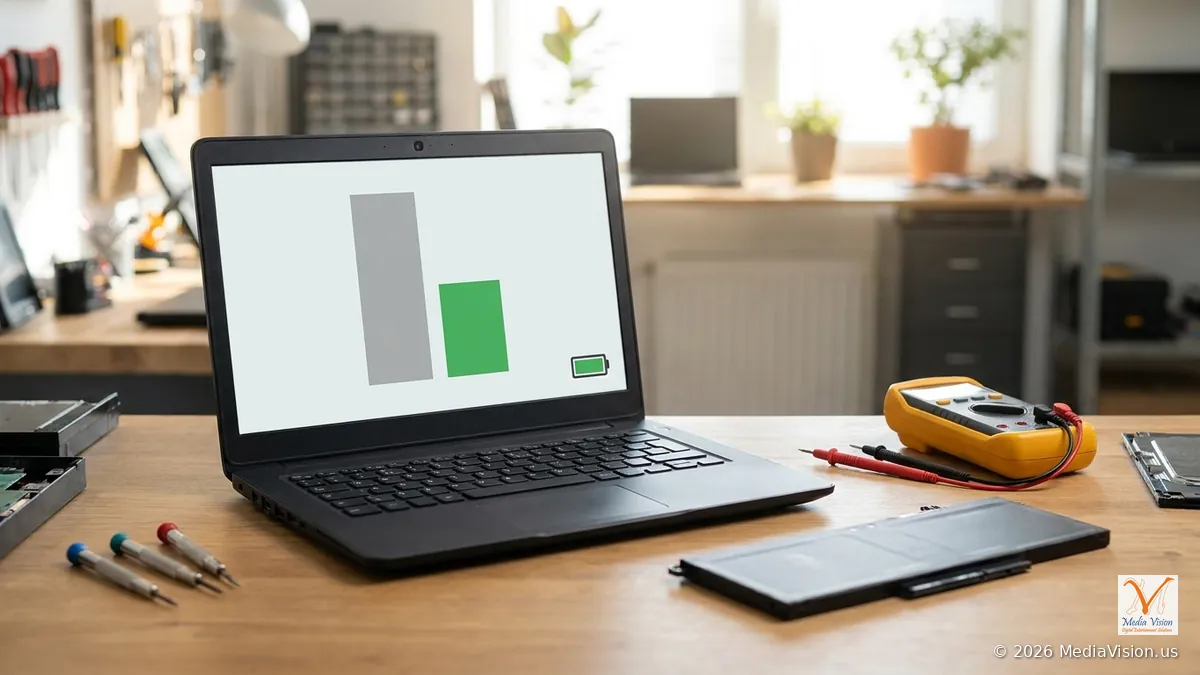
Laptop dying by lunchtime? Before you buy a new battery, or a new laptop, find out how worn the battery really is. Windows has a free, built-in battery report that shows how much charge your battery was designed to hold and how much it holds today. It takes about a minute, and most people have never run it.
Windows Settings shows your current battery level under Settings > System > Power & battery, but not the battery's long-term wear. For that you need the battery report.
Step 1: Create the Battery Report
These are Microsoft's own steps for Windows 11 (the same command also works on Windows 10 laptops):
- Select Start, type Command Prompt, right-click it and choose Run as administrator, then select Yes.
- Type
powercfg /batteryreportand press Enter. - Windows tells you where it saved the report, an HTML file. Open that folder in File Explorer and double-click the file to open it in your web browser.
Tip: To save the report somewhere easy to find, add an output path, for example:
powercfg /batteryreport /output "%USERPROFILE%\Desktop\battery-report.html"
Microsoft's powercfg reference lists the /output option for choosing the file name and location, and /duration for choosing how many days of history to analyze.
The report is a local file on your PC. Nothing is uploaded.
Step 2: Read the Three Numbers That Matter
Scroll to the Installed batteries section near the top:
| Field | What it means |
|---|---|
| DESIGN CAPACITY | How much energy the battery was built to hold when new (in mWh). |
| FULL CHARGE CAPACITY | How much energy it holds now when fully charged. This number goes down as the battery wears. |
| CYCLE COUNT | How many charge and discharge cycles the battery has recorded. Some batteries do not report this and show 0 or nothing. |
Step 3: Work Out Your Battery Health
Divide Full Charge Capacity by Design Capacity and multiply by 100. Microsoft's developer documentation describes this same ratio as the way to measure wear, because full charge capacity changes as the battery ages.
Example (made-up numbers for illustration): a battery designed for 50,000 mWh that now reaches 40,000 mWh is at 80% of its original capacity, so expect roughly 80% of the runtime it had when new, under the same workload.
A few things to keep in mind:
- The numbers come from the battery's own electronics, so they are estimates and can move a little from day to day.
- Microsoft notes that some battery controllers report the same value for both capacities, or no value at all. If the two numbers are identical on an older laptop, the report may not be telling you much.
- Microsoft does not publish a percentage at which a battery must be replaced. Check your laptop maker's support site for its guidance and warranty terms.
Other Useful Sections in the Report
- Recent usage and Battery usage show when the laptop was on battery and how fast it drained. Microsoft points to these, together with Installed batteries, as the place to start.
- Battery capacity history shows full charge capacity over time. A slow, steady decline is normal aging. A sudden big drop is worth a closer look.
- Battery life estimates compare expected runtime at full charge against what the battery was designed to deliver.
Bonus: Find What Is Draining Your Battery
If the battery is healthy but still drains quickly, something may be keeping the laptop busy. From the same administrator Command Prompt, run powercfg /energy. Microsoft says it analyzes the system for common energy-efficiency and battery-life problems and saves an HTML report. Close your programs first: Microsoft recommends running it while the computer is idle. By default it watches the system for 60 seconds.
Help Your Battery Last Longer
Lithium-ion batteries lose capacity as they go through charge cycles. That is normal. Microsoft's battery care advice is to avoid frequent deep discharges and keep the battery within a moderate range, roughly 20% to 80%, when possible. Many laptops include a manufacturer setting that limits charging to help with this. Look in your maker's app.
When to Stop and Get It Checked
- Swelling or bulging. If the case, touchpad or keyboard is lifting, stop using and charging the laptop and bring it in. Do not press on it or try to puncture it.
- Shuts off at 20% to 30% or jumps between percentages. This can point to a worn battery or a calibration or power problem.
- Only works plugged in, or shows "plugged in, not charging". The cause could be the battery, the charger, the charging port or the motherboard.
- Overheating while charging. Have it checked before it becomes a bigger problem.
How MediaVision Can Help
Not sure if it is the battery, the charger or something else? Bring your laptop to the MediaVision workshop in Anaheim. We can:
- Run a full battery and power check, including charger and charging-port tests
- Read the battery report with you and explain what the numbers mean for your laptop
- Replace worn or swollen batteries where parts are available
- Find software that drains your battery and clean up startup programs
- Give you a clear, honest quote before any work starts
MediaVision Computer Repair
800 S Brookhurst St, Suite 1B3, Anaheim, CA 92804
Phone: (714) 888-5959
Book Now
Frequently Asked Questions
Is the battery report safe to run?
Yes. It only reads information and saves a report file. It does not change any settings, and you can delete the file when you are done.
Does this work on a desktop PC?
The report is meant for laptops, 2-in-1s and tablets that have a battery. A desktop without a battery has no battery data to report.
My report says "Access denied" or will not save. What now?
Make sure you opened Command Prompt with Run as administrator, as Microsoft's steps say, or use the /output option to save the file to a folder you can write to, such as your Desktop.
Does this work on a Mac?
No. This is a Windows tool. On a Mac, battery condition is shown in System Settings, and Apple Diagnostics can test the battery. We can check either one in the shop.