Random blue screens, apps crashing for no reason, freezes or surprise restarts? Before you reinstall Windows or buy a new PC, check the memory (RAM). A failing RAM stick can make a computer unstable and can even corrupt data. Windows has a free built-in tool for this called Windows Memory Diagnostic. Here is how to run it, how to read the result, and what to do next.
Signs Your RAM Could Be the Problem
- Random Blue Screen of Death (BSOD) or "stop" errors
- Apps crashing, freezing, or the PC rebooting on its own
- On-screen errors about memory, or problems installing software or Windows (Dell)
- A desktop that won't start and shows memory error lights or beep codes (Dell)
Other things can cause these symptoms too (drivers, overheating, a failing drive), so a memory test helps you rule RAM in or out.
Before You Start
- Save your work and close all apps. The test restarts your PC.
- Plug a laptop into power. The test can take a while.
- If the PC is crashing a lot, back up your important files first.
Step 1: Start Windows Memory Diagnostic
- Press Windows + R, type
mdsched.exeand select OK. (In Windows 11 you can also open Windows Tools from Start and double-click Windows Memory Diagnostic.) - Choose Restart now and check for problems (recommended), or Check for problems the next time I start my computer if you want to run it later.
Step 2: Let the Test Run (Optional: Choose a Deeper Test)
After the restart, the tool starts on its own and runs the Standard test. When it finishes, the PC restarts back into Windows.
- To change the test, press F1 while it runs. Use the arrow keys to pick Basic, Standard or Extended, then press F10 to apply and continue (Microsoft).
- Extended runs more tests and takes much longer. It is a good choice if Standard passes but the crashes continue.
- On the same screen you can also change the cache setting (with Tab) and the number of passes (Windows Central).
Step 3: Read the Result
You may see the result when you sign back in. If not, look it up in Event Viewer:
- Right-click Start and open Event Viewer.
- Expand Windows Logs and select System.
- Right-click System, choose Find..., type
MemoryDiagnostics-Resultsand select Find Next. - Open the newest result. "Detected no errors" means the test found no memory problem.
What to Do Next
- No errors, but still crashing? Try the Extended test. If that also passes, the cause is probably something else, such as drivers, updates, overheating or the drive.
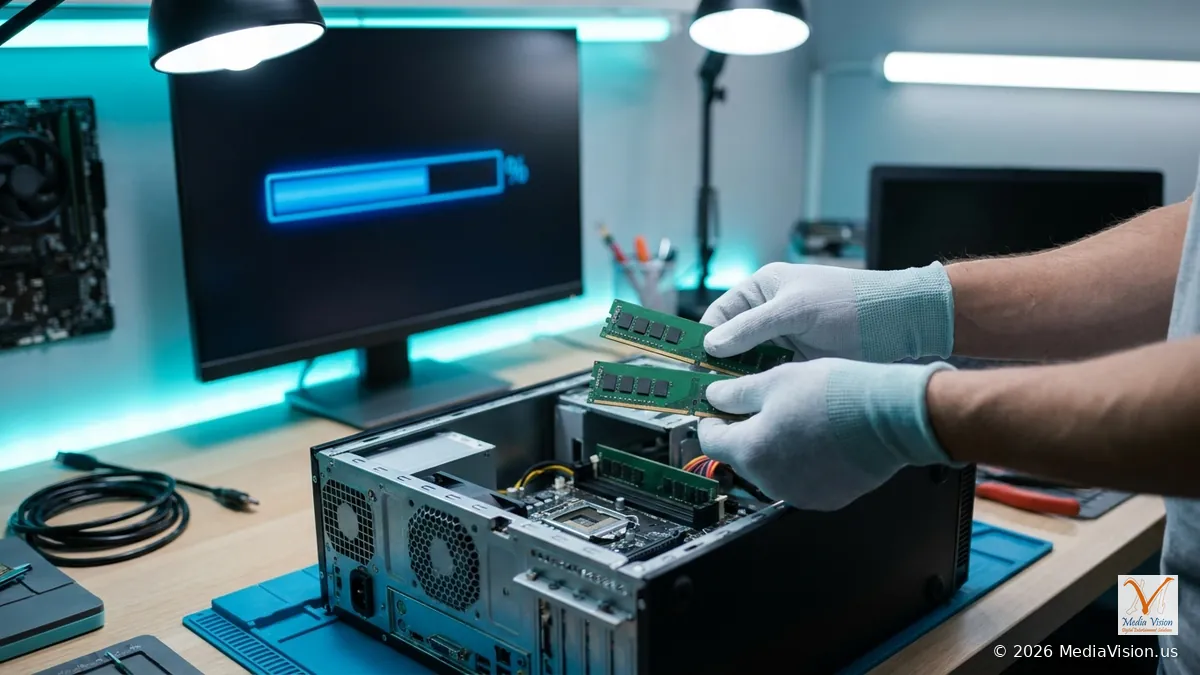
- Errors found? On a desktop, Dell's advice is to test one memory stick at a time, in each slot, to see if the fault follows a stick or stays with a slot. Then replace the bad stick.
- Laptop with errors? Many newer laptops have memory soldered to the board, so the fix may be a board repair or replacement. Get a professional opinion first.
- Use your PC maker's test too. Brands like Dell have their own built-in pre-boot hardware diagnostics that can point to a specific memory stick or slot.
MediaVision Tips From the Repair Bench
- Turn the PC off and unplug it before you touch any memory stick, and handle sticks by the edges.
- Reseating RAM (pulling it out and pushing it back in firmly) sometimes fixes a stick that has worked loose, especially after moving a desktop.
- If you recently enabled a memory overclock profile (XMP or EXPO) and the crashes started after that, turn it off in the BIOS and test again.
- One clean pass is not a guarantee. If crashes return, test again with more passes.
How MediaVision Can Help
If your PC keeps crashing and you're not sure if it's the RAM, the drive or Windows, bring it to the MediaVision workshop in Anaheim. We can:
- Run full memory and hardware diagnostics
- Find the exact bad RAM stick or slot
- Upgrade or replace memory with the right, compatible part
- Back up your files before any repair
- Give you a clear, honest quote before any work starts
Diagnostic: $110, discounted to $85, and free with any repair.
MediaVision Computer Repair
800 S Brookhurst St, Suite 1B3, Anaheim, CA 92804
Phone: (714) 888-5959
Book Now
Frequently Asked Questions
Will Windows Memory Diagnostic delete my files?
No. It only tests memory and then restarts your PC. Still, save your work before you start because the PC will restart.
How long does the test take?
It depends on how much memory you have and which test you choose. Standard is the default. Extended runs more tests and takes much longer.
Where do I find the results?
In Event Viewer under Windows Logs > System. Search for MemoryDiagnostics-Results.
The test passed. Is my RAM definitely fine?
Not always. If crashes continue, run the Extended test or your PC maker's hardware diagnostics, or have a technician test it.