Is your laptop's fan roaring all the time, the bottom too hot to touch, or the computer slowing down and even shutting off by itself? One of the most common causes is simple: dust. Fans pull in air to cool the processor, and they pull in dust with it. Over time that dust clogs the vents and the cooling fins. Here is how to clean the vents safely, using the steps HP and Dell publish for their own laptops, plus a few tips from our repair bench.
Signs Your Laptop Is Overheating
HP lists these common warning signs:
- Fans running loudly all the time
- The bottom or keyboard feels very hot
- The laptop slows down during tasks, because the processor reduces its speed to protect itself (thermal throttling)
- Sudden shutdowns, when the laptop turns itself off to prevent heat damage
Dell explains why this matters: when dust blocks the vents, the fan has to work harder, which increases noise and drains the battery, and as temperatures rise the processor slows down automatically.
What You Need
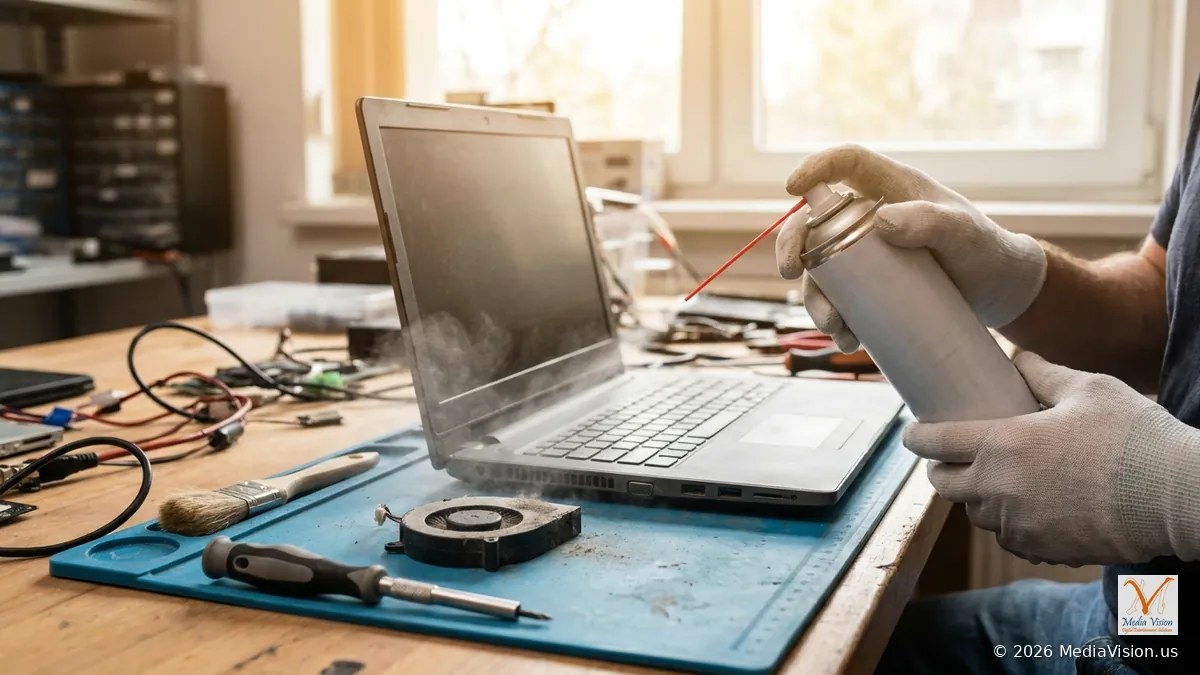
- A can of electronics-safe compressed air
- A soft brush or cotton swabs for stubborn dust
- A hard, flat table to work on
Dell recommends not using a household vacuum or blower, because it can create static electricity or damage the fan bearings.
How to Clean the Vents (No Need to Open the Laptop)
HP notes that it is not necessary to open the computer to clean the vents. Its steps are:
- Turn off the laptop and unplug the power cord. Shut it down completely, not just sleep.
- Find the vents. They are usually underneath and on the sides of the laptop.
- Blow out the dust with compressed air in short bursts. HP says to hold the can upright so no liquid sprays into the laptop.
- Wait five to ten minutes to let the computer cool down.
- Reconnect the power and turn it on.
- Listen to the fans. If they sound normal, you are done. HP says a loud growling noise or a fan that does not move means there is a problem with the fan itself.
Dell also advises using controlled bursts and not forcing the fan to spin rapidly with the air.
Keep It Cool After Cleaning
- Use it on a hard, level surface. HP warns that a bed, couch cushion or your lap can restrict or completely block airflow and cause overheating and damage.
- Give the vents room. HP recommends at least 6 inches (15.25 cm) of clearance around each vent.
- Update the BIOS and drivers. Both HP and Dell say a BIOS update can improve fan control and thermal behavior.
- Consider a laptop stand or cooling pad for extra airflow during heavy work or gaming.
- Clean on a schedule. Dell recommends clearing dust every three to six months, more often in homes with pets or a lot of dust.
Should You Open the Laptop?
HP says internal cleaning should only be done if you are comfortable with basic computer hardware, and that opening some models may void the warranty, so check your manual first. Dell points out that many thin laptops have glued parts or hidden screws, and if the case feels too complicated to open, external cleaning is the safest choice. Dell also suggests opening the laptop only if overheating or loud fan noise continues after external cleaning.
MediaVision Tips From the Repair Bench
- Back up first if the laptop has been shutting down by itself. Sudden power-offs are a good reason to make sure your files are safe.
- Clean vents are not always enough. On older laptops, the thermal paste between the processor and the heatsink can dry out. That is a quick job on our bench.
- Hot and crashing? Check the crash history too: Windows Reliability Monitor shows why your PC crashes.
- A grinding or clicking fan usually needs to be replaced, not cleaned. Running a laptop with a failing fan can damage other parts.
How MediaVision Can Help
If your laptop is still loud, hot or shutting down after you clean the vents, bring it to the MediaVision workshop in Anaheim. We can:
- Open the laptop and deep-clean the fan and heatsink safely
- Replace dried-out thermal paste and worn thermal pads
- Replace a noisy or failed cooling fan
- Update the BIOS and check temperatures under load
- Give you a clear, honest quote before any work starts
Diagnostic: $110, discounted to $85, and free with any repair.
MediaVision Computer Repair
800 S Brookhurst St, Suite 1B3, Anaheim, CA 92804
Phone: (714) 888-5959
Book Now
Frequently Asked Questions
How often should I clean my laptop vents?
Dell recommends every three to six months, and more often if you have pets or a dusty room, or if you notice more fan noise or overheating.
Can I use a vacuum cleaner?
Dell does not recommend a standard household vacuum or blower, because it can create static electricity or damage the fan bearings. Use electronics-safe compressed air in short bursts.
Do I have to open my laptop to clean the fan?
Usually not. HP says it is not necessary to open the computer to clean the vents. Open it only if you are comfortable doing so and it will not void your warranty, or let a technician do it.
Why is my laptop still hot after cleaning?
Other causes include a soft surface blocking airflow, heavy apps, an outdated BIOS, dried thermal paste or a failing fan. If cleaning does not help, have it checked.