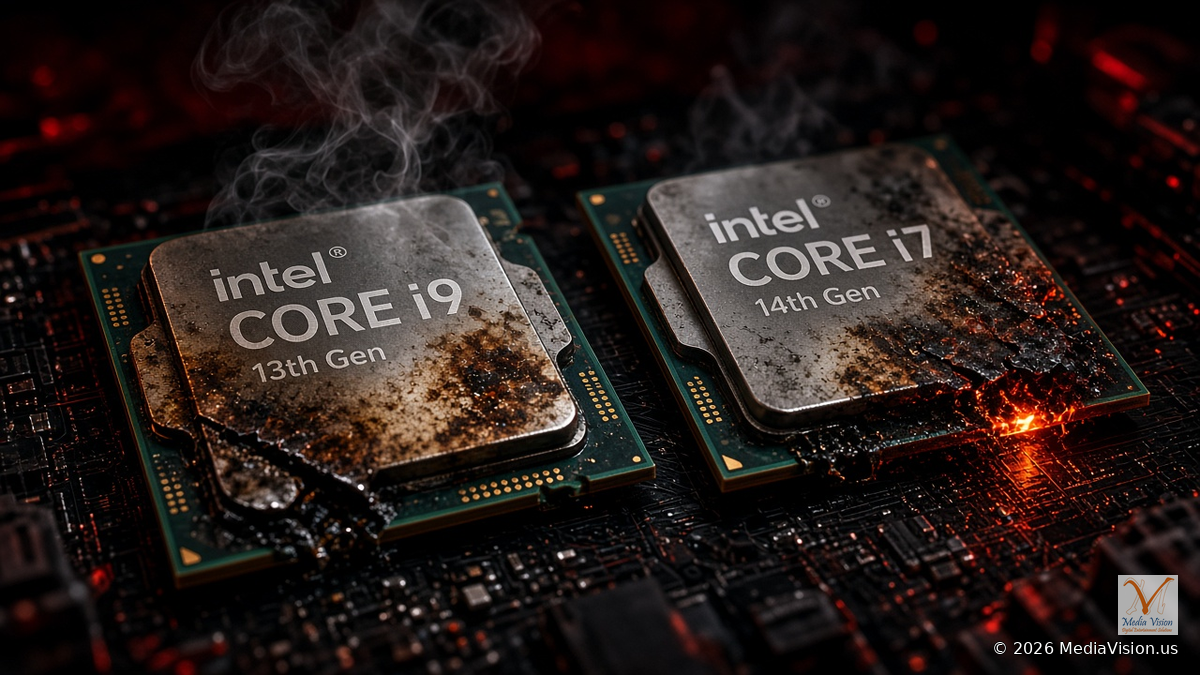
Intel has identified the root cause of a problem it calls Vmin Shift Instability, which can affect some 13th and 14th Gen Core desktop processors. The company's current support guidance, last reviewed 21 July 2026, is to use Intel Default Settings in the BIOS and install the latest motherboard or system BIOS that contains microcode 0x12F or later. Intel also extended warranty coverage by two years for listed processors, for up to five years from the original date of purchase.
MediaVision has been seeing unstable 13th and 14th Gen desktop PCs in the Anaheim workshop. A current BIOS can reduce further risk, but Intel has said the update will not repair a processor that is already failing. Those systems should be checked and, when eligible, put through Intel's or the system maker's warranty process.
What Intel Has Confirmed
- Intel localized the issue to a clock-tree circuit inside the processor's IA core that can age under elevated voltage and temperature. That aging can shift the clock duty cycle and produce system instability.
- Intel described four operating scenarios that can lead to Vmin shift: motherboard power-delivery settings that exceed Intel's guidance; an eTVB microcode issue on 13th and 14th Gen Core i9 desktop processors (addressed by microcode 0x125 in June 2024); a microcode SVID algorithm that requested high voltages (addressed by 0x129 in August 2024); and microcode or BIOS code that requested elevated core voltages during idle or light activity (addressed by 0x12B in September 2024, which also includes the earlier updates).
- On 1 May 2025, Intel released microcode 0x12F as a supplement to 0x12B, after investigating a limited number of reports of systems that ran for multiple days with low-activity, lightly threaded workloads. Intel said 0x12F does not change the root-cause finding, and that its testing found no measurable performance impact compared with 0x12B.
- Intel's current public recommendation is to use the relevant Intel Default Settings in BIOS and to run a BIOS that contains microcode 0x12F or later.
- The BIOS and microcode updates are preventative. Intel has said they will not fix processors that are already showing Vmin Shift instability. Those systems should go through the correct warranty or exchange path.
- Intel has also said 13th and 14th Gen mobile processors, and later client families including Lunar Lake and Arrow Lake, are not affected by this Vmin Shift Instability issue.
- A replacement processor does not restart the warranty clock. Coverage is measured from the original date of purchase.
Which Processors Can Be Affected
Intel told The Verge in July 2024 that 13th and 14th Generation desktop processors with a Processor Base Power of 65 W or higher — including K, KF, and KS parts and 65 W non-K variants — could be affected by the elevated-voltage issue. Intel also said that does not mean every processor in that group is, or will be, affected.
Early public reports concentrated on high-end parts such as the Core i9-13900K and Core i9-14900K. The official scope is broader than those two models. The list of processors that received the two-year warranty extension is also narrower than that 65 W statement, so a chip can fall inside the potential-exposure discussion without appearing in the warranty table below.
Processors listed for the two-year warranty extension
Intel's current warranty table lists these desktop processors:
| 13th Generation Intel Core | Intel Core processors (14th Gen) |
|---|---|
| i9-13900KS | i9-14900KS |
| i9-13900K | i9-14900K |
| i9-13900KF | i9-14900KF |
| i9-13900F | i9-14900F |
| i9-13900 | i9-14900 |
| i7-13700K | i7-14700K |
| i7-13700KF | i7-14700KF |
| i7-13790F | i7-14790F |
| i7-13700F | i7-14700F |
| i7-13700 | i7-14700 |
| i5-13600K | i5-14600K |
| i5-13600KF | i5-14600KF |
Intel said this extension applies to new and previously purchased processors on that list, and that coverage is global, subject to the standard warranty process.
Symptoms Owners Should Take Seriously
Intel describes the problem as system instability. In public reports since 2024, that has commonly included unexpected crashes in games and applications — often during shader compilation or other heavy CPU work — as well as hangs, unexpected reboots, and blue screens.
Those symptoms can also come from memory instability, a motherboard firmware problem, power delivery, graphics drivers, storage, cooling, or an operating-system fault. A crash by itself does not prove this defect. If problems continue after a current BIOS with microcode 0x12F or later and Intel Default Settings, treat it as a possible hardware issue and start the correct warranty path rather than only changing voltages.
What You Should Do Now
- Identify the exact processor. In Windows, open System Information (
msinfo32) or Task Manager and read the processor name. You can also use the Intel Processor Identification Utility. - Update the BIOS from the official source. Download the latest stable BIOS only from your motherboard manufacturer's support page, or from your PC maker if the computer is a prebuilt system. Follow that vendor's flashing instructions carefully. Intel distributes this microcode to motherboard and system manufacturers; it is not applied by a normal Windows Update.
- Load Intel Default Settings. After the update, load the BIOS profile named Intel Default Settings, or the closest equivalent your board provides. Reapply memory profiles such as XMP only after the system is stable, and avoid manual CPU overclocking or out-of-spec voltage changes.
- Confirm the BIOS contains microcode 0x12F or later. Intel's official method is the Processor Identification Utility: open the CPUID DATA tab and read CPU Revision. A value such as 12F is written as 0x12F. Many motherboard BIOS screens also show the microcode revision. Intel has said the relevant update must be loaded through a BIOS update, so a Windows-only patch is not the recommended fix for this issue.
- If the PC is already crashing, start a warranty claim. Photograph the system information, record the motherboard model, BIOS version, and microcode revision, and describe the symptoms. Do not keep stress-testing a processor that is already failing.
How to Use the Extended Warranty
For the processors listed above, Intel is offering a two-year extended limited warranty, for coverage of up to five years from the original date of purchase. Intel's general warranty policy states that the eligibility period starts on the original purchase date and does not reset if Intel provides a replacement.
Intel's published claim path is:
- Boxed processors: contact Intel Customer Support.
- Tray processors: contact the place of purchase.
- OEM or system-integrator desktops: contact the system manufacturer.
- A previous RMA that was denied: Intel asks customers to contact Intel Customer Support again for further assistance.
You do not need to register a boxed processor with Intel before starting a claim. For a boxed-processor claim, Intel says you will need the processor name and number, the serial number (ATPO), and the batch number (FPO). Those numbers are on the shipping box and on the processor itself: the batch number is on the top of the chip, and the serial number is on the edge (a partial serial number is printed there; the full serial number is in the 2D matrix). Intel may also ask for the purchase date, proof of purchase, contact information, a description of the issue, and motherboard or BIOS details.
To check boxed-processor warranty status, follow Intel's instructions in How to Check the Warranty Status of My Intel Boxed Processor: use the Warranty Information tool, choose Processor as the product type, enter the FPO and the full or partial ATPO, and select Check products. The tool should show whether the part is boxed or tray and an estimated warranty expiration. If the result is inconclusive, contact Intel Customer Support. If the tool identifies a tray processor, warranty support generally goes through the place of purchase, not directly through Intel.
Intel does not honor warranty requests for used, refurbished, or engineering-sample processors.
MediaVision Technical Analysis
The important distinction is between prevention and repair. A current BIOS with microcode 0x12F or later, plus Intel Default Settings, is the right first step on a 13th or 14th Gen desktop that is still stable. It may reduce further exposure. It is not a guaranteed cure for a CPU that is already crashing, hanging, or failing under load.
That is also why we are treating this as an urgent hardware alert in the shop. We have been seeing 13th and 14th Gen desktop systems with unexplained instability. When a customer brings one in, we first rule out common look-alikes — memory profiles, cooling, storage, and drivers — then we check the BIOS and microcode, apply the vendor's current firmware and Intel Default Settings when appropriate, and, if the processor is still unstable, help document the case for the correct warranty path.
We will update this article if Intel revises the microcode requirement, the warranty table, or its support guidance.
How MediaVision Can Help
If you have a 13th or 14th Gen Intel desktop and are not sure whether the BIOS is current, whether the microcode is 0x12F or later, or whether the crashes are the CPU or something else, bring the PC to the MediaVision workshop in Anaheim. We can:
- Check the processor model, BIOS version, and microcode revision
- Install the official motherboard or system BIOS and set Intel Default Settings
- Run a CPU stability check and look for other causes, including memory and cooling
- Help you start an Intel, retailer, or system-manufacturer warranty claim if the processor is already failing
MediaVision Computer Repair
800 S Brookhurst St, Suite 1B3, Anaheim, CA 92804
Phone: (714) 888-5959
Book Now
Frequently Asked Questions
Will a BIOS update fix a processor that already crashes?
Not according to Intel. The company has said the BIOS and microcode updates will not fix processors that are already experiencing instability from Vmin shift. Those systems should use the warranty or exchange process.
Is every 13th or 14th Gen processor defective?
No. Intel says some 13th and 14th Gen desktop processors can be affected, and that this does not mean every listed or 65 W-class part is failing or will fail.
Does this affect Intel laptops?
Intel has said 13th and 14th Gen mobile processors are not affected by this Vmin Shift Instability issue. This article is about desktop processors.
Will Intel Default Settings or microcode 0x12F slow my PC down?
Intel reported no measurable performance impact for 0x12F compared with 0x12B in its own tests, though real-world results depend on the system. Intel Default Settings may be more conservative than a motherboard's unlimited power profile. That limit is part of the mitigation.
My computer is a prebuilt. Who should I call?
Start with the system manufacturer. Intel's guidance is that OEM and system-integrator desktops should go through the system maker. Boxed retail processors can go to Intel Customer Support. Tray processors should go to the place of purchase.
Does a replacement CPU get a new five-year warranty?
No. Intel's warranty policy says the eligibility period starts on the original purchase date and does not reset when Intel provides a replacement. "Up to five years" is measured from that original purchase date.