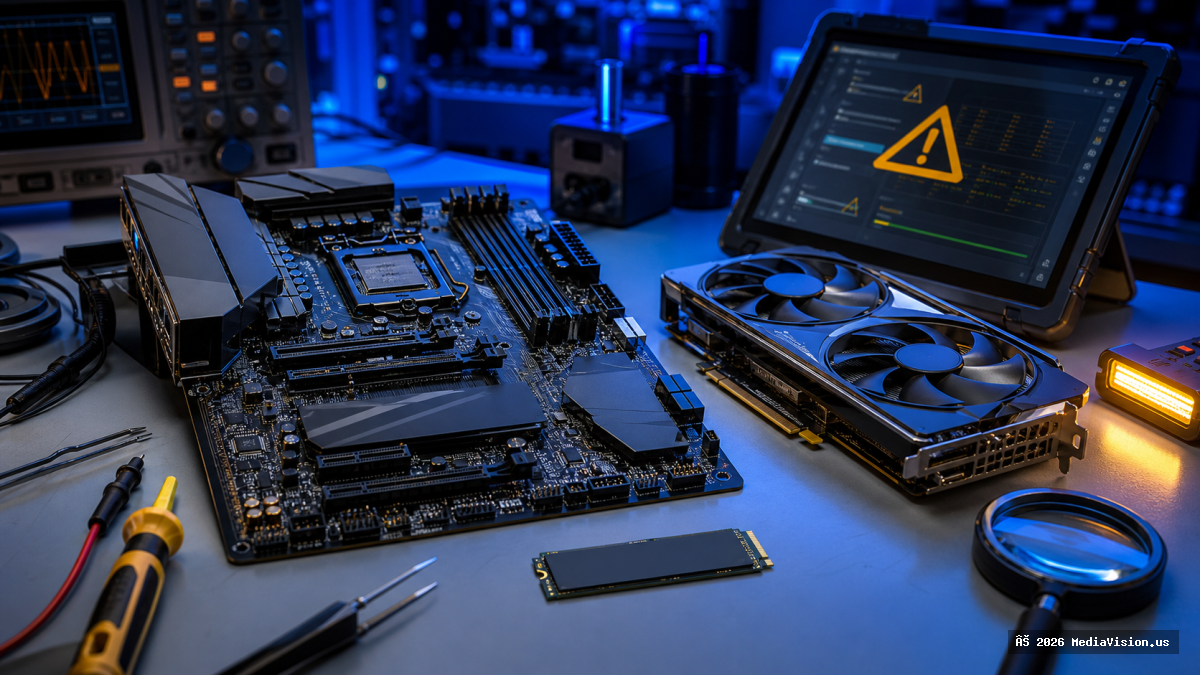
Windows Update handles the operating system. Your graphics driver handles the GPU software layer. But underneath both, individual components run their own firmware — and for most users it is never updated once in the life of the machine.
When Firmware Updates Genuinely Matter
- SSDs. This is the big one. Firmware bugs have caused drives to misreport health, degrade prematurely, or drop off the bus entirely. Manufacturer fixes are real and worth applying.
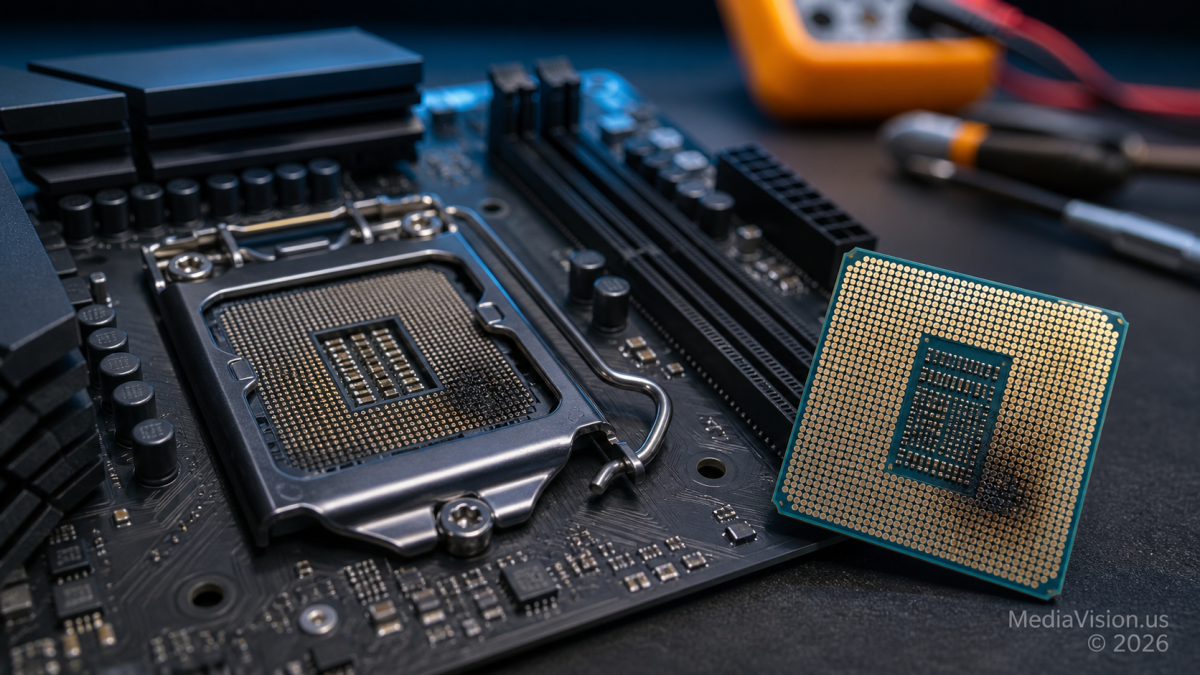
- Motherboard BIOS/UEFI. Needed for new CPU support, memory compatibility, and security patches. Also where voltage-related stability fixes land.
- Peripherals. Docking stations and USB-C hubs are a common source of mystery disconnects that a firmware update resolves.
When to Leave It Alone
If the machine is stable and the component is not on a known-issue list, a firmware update is risk without reward. A failed BIOS flash can render a board unbootable. The rule we use in the shop: update firmware to fix a specific problem or to apply a published advisory, not as routine housekeeping.
How to Do It Safely
- Back up your data first. Always. Firmware updates can, rarely, require a drive to be re-initialised.
- Use only the manufacturer's own tool — Samsung Magician, Crucial Storage Executive, WD Dashboard, or your board vendor's BIOS utility.
- Never interrupt power. On a laptop, stay plugged in. On a desktop during a storm, wait.
- Write down the version you came from, so a rollback is possible if one is offered.
MediaVision Technical Analysis
The most valuable firmware update most people can make is on their boot SSD, and most people have never checked whether one exists. It takes about two minutes with the vendor tool. If you would rather not risk it, we do this as part of a standard tune-up and we image the drive first.