Your Mac freezes right after login, a spinning wheel never stops, an app crashes every time you start up, or a macOS update won't install. Before you erase anything, try safe mode. It is built into every Mac, it doesn't delete your files, and Apple designed it to tell you one thing: is the problem caused by software that loads when your Mac starts up?
What Safe Mode Actually Does
According to Apple's support guide, starting up in safe mode:
- Blocks extra startup software: login items, extensions that macOS doesn't need, and fonts that macOS didn't install.
- Checks your startup disk, a basic version of the First Aid check in Disk Utility.
- Clears some system caches, including font caches and the kernel cache. macOS rebuilds them as needed, and Apple notes this can temporarily free up some storage space.
Before You Start: Two Quick Steps
- Install updates first. Apple says installing the latest macOS and app updates is "more likely than any other step" to fix the kind of problem safe mode helps find. If updates won't install normally, try installing them while in safe mode.
- Unplug everything you don't need: external drives, docks, hubs, printers and other accessories. A connected device can be the real cause.
How to Start Up in Safe Mode
The steps depend on your Mac's chip. To check, choose Apple menu > About This Mac and look for Chip (Apple silicon, such as M1, M2, M3 or M4) or Processor (Intel).
Mac with Apple silicon (M-series)
- Shut down the Mac. If it won't shut down normally, press and hold the power button (Touch ID button on laptops) for up to 10 seconds until it turns off.
- Press and hold the power button. Keep holding until you see Loading startup options or the Options icon, then release.
- Select your startup disk (usually Macintosh HD).
- Press and hold Shift, then click Continue in Safe Mode. The Mac restarts.
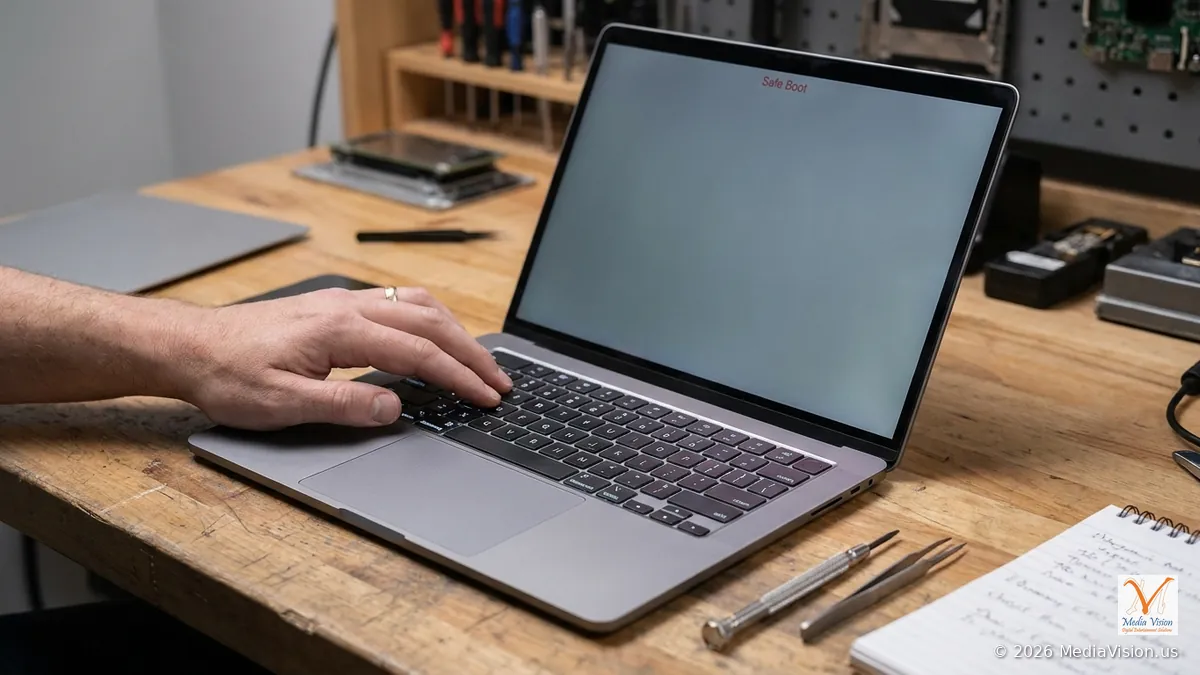
- Log in. You may see Safe Boot in red at the top-right of the login window, and you may be asked to log in twice.
Intel-based Mac
- Turn on or restart the Mac and immediately press and hold Shift.
- Release Shift when the login window appears. You may see Safe Boot in red at the top-right, on the first or second login window.
Not sure you're in safe mode? Hold Option, choose Apple menu > System Information, click Software, and look for Boot Mode: Safe.
Test, Then Read the Result
Use the Mac the way that normally triggers the problem. Keep in mind Apple warns some things may not work normally in safe mode, including graphics performance, Wi-Fi, file sharing, audio devices, video capture, and some USB or Thunderbolt devices. That is expected and not a sign of a new problem.
- Problem still happens in safe mode: it is likely not caused by your startup apps. Apple's suggested next step is to reinstall macOS, which does not remove your personal files. Make sure you have a current backup first anyway.
- Problem is gone in safe mode: restart normally (Apple menu > Restart). If the problem doesn't come back, the disk check or cache cleanup may have fixed it.
- Problem returns after a normal restart: a login item or other startup software is the likely cause. Remove login items in System Settings and restart. You can also create a new test user in Users & Groups; if the problem doesn't happen there, it is something in your own account.
When Safe Mode Won't Start
- If the Mac shows a question mark, a circle with a line through it, or another screen that stops startup, safe mode isn't available. That points to a deeper startup problem.
- An Intel-based Mac with a firmware password can't start up in safe mode.
Quick Checklist
- Update macOS and apps, unplug accessories
- Apple silicon: hold power > startup disk > Shift + Continue in Safe Mode
- Intel: hold Shift right after power on
- Confirm "Boot Mode: Safe" in System Information
- Test, restart normally, then remove login items if the problem comes back
- Problem even in safe mode? Back up, then reinstall macOS or get it checked
When to Bring It In
If the Mac won't reach safe mode, the problem continues after reinstalling macOS, or you see disk errors, it may be a failing drive, a hardware fault, or a corrupted system that needs a technician. Don't keep force-restarting a Mac with important files and no backup.
How MediaVision Can Help
- Diagnose Macs that freeze, crash at startup or won't finish booting
- Find and remove problem login items and startup software
- Back up your files before any repair, then reinstall macOS safely
- Test the drive and hardware and give you a clear, honest quote before any work starts
Diagnostic: $110, discounted to $85, and free with any repair.
MediaVision Computer Repair
800 S Brookhurst St, Suite 1B3, Anaheim, CA 92804
Phone: (714) 888-5959
Book Now
Frequently Asked Questions
Does safe mode delete anything on my Mac?
No. It skips some startup software, checks the startup disk and clears some caches that macOS rebuilds automatically. Your files and apps stay where they are.
How do I get out of safe mode?
Choose Apple menu > Restart. The Mac starts up normally.
Why is my Mac slow or missing Wi-Fi in safe mode?
Apple says graphics, Wi-Fi, audio, file sharing and some connected devices may not work as expected in safe mode. Restart normally to get them back.