When a Windows PC freezes, restarts by itself or keeps crashing one program, most people start guessing: a virus, a bad update, a failing drive. Windows already keeps a dated record that can narrow it down in about a minute. It is called Reliability Monitor, it is built into Windows 10 and Windows 11, and almost nobody opens it.
Microsoft describes Reliability Monitor as a stability history of the system, with day-by-day details about events that affect reliability. It keeps up to a year of history, so you can often see exactly when the problems started and what changed on that day.
How to Open Reliability Monitor
Use whichever method is easiest:
- Run box: press Windows key + R, type
perfmon /reland press Enter. Microsoft'sperfmoncommand reference lists/relas the switch that starts Reliability Monitor. - Start search: open Start and type reliability, then choose View reliability history.
- Control Panel: go to Security and Maintenance, expand Maintenance, and click View reliability history.
It can take a few seconds to build the report the first time.
How to Read the Chart
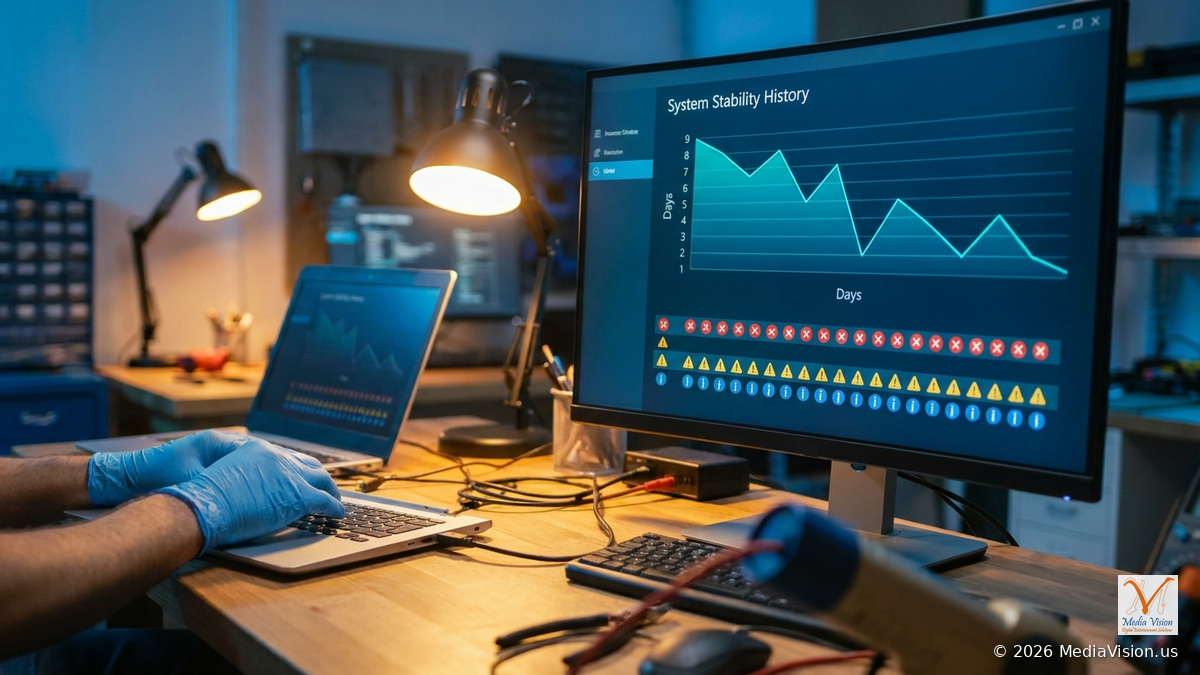
- The line at the top is the System Stability Index, a score from 1 (least stable) to 10 (most stable). It drops when failures are recorded and slowly recovers on days without problems.
- The rows underneath track application failures, Windows failures, miscellaneous failures, warnings and information events.
- A red X marks a failure on that day. A yellow warning triangle and a blue "i" are mostly about software installs and updates: the blue icon means something installed successfully, and the warning means an install or update failed.
- Switch between Days and Weeks at the top left to see a longer stretch of time.
A 5-Minute Diagnostic Routine
- Find the first bad day. Scroll back to the day the stability line first dropped or the red X marks started appearing.
- Look at the same day's blue icons. Click that day and read the list at the bottom. A new driver, a Windows update, or a new program installed on the same day is your first suspect.
- Check whether it is one program or the whole system. If the red X marks are always the same application, the fix is usually in that program (update, repair or reinstall it). Repeated Windows failures such as "Shut down unexpectedly" or hardware errors point to the system itself.
- Open the details. Double-click an entry or choose View technical details. Write down the faulting application, the faulting module and the exception code. Those names are what a technician (or a careful web search) needs.
- Save the history. Use Save reliability history at the bottom to export it as an XML file before a repair visit, so nothing is lost if Windows has to be reset.
- Re-check after the fix. After you update a driver, remove a program or roll back an update, come back in a few days. A rising stability line with no new red X marks is good evidence the fix worked.
What the Common Patterns Usually Mean
| What you see | Where to look first |
|---|---|
| The same app fails again and again | That app: update, repair or reinstall it, and check its add-ins or plug-ins |
| Failures started on the same day as a driver or Windows update | That update or driver: check the manufacturer's newer version, or roll it back |
| "Windows was not properly shut down" or hardware errors | Power, overheating, memory, storage and the motherboard firmware |
| Many different apps crashing with no clear pattern | System-wide causes such as memory instability, an aggressive overclock or XMP/EXPO profile, or a failing drive |
Know Its Limits
Reliability Monitor is a history book, not a diagnosis. An update appearing on the same day as a crash does not prove the update caused it, and an install icon is not a failure. It also may not record every crash, sudden power loss or firmware problem, and a freshly installed copy of Windows will not have much history yet. Treat it as the place where troubleshooting starts, then confirm the cause with proper tests.
MediaVision Technical Analysis
Reliability Monitor is one of the first screens we open in the Anaheim workshop when a customer says "it just crashes sometimes." A date and a faulting module turn a vague complaint into a short list of suspects, and the exported history lets us compare before and after a repair. If you see repeated hardware errors or unexpected shutdowns, stop guessing and back up your files first, because those patterns can come from a failing drive or power problem.
How MediaVision Can Help
If your PC keeps crashing, freezing or restarting and the cause is not obvious, bring it to the MediaVision workshop in Anaheim. We can:
- Read the reliability history and Windows logs to find when and where the failures start
- Test memory, storage, temperatures and power delivery to rule out hardware faults
- Update or roll back the drivers, firmware and updates involved
- Back up your data before any repair or reset
MediaVision Computer Repair
800 S Brookhurst St, Suite 1B3, Anaheim, CA 92804
Phone: (714) 888-5959
Book Now
Frequently Asked Questions
Do I need to install anything?
No. Reliability Monitor is part of Windows. Press Windows key + R and type perfmon /rel.
Is a low stability score a sign my computer is broken?
Not by itself. The score drops for any recorded failure, including a single app crash. Look at what the red X marks are and whether they repeat.
How far back does it go?
Microsoft says Reliability Monitor keeps up to a year of history.
Can I send the history to a technician?
Yes. Click Save reliability history at the bottom of the window to export it as an XML file.